
Purpose:
This article explains how to Disconnect and Reconnect email accounts set up in Forth for the purpose of being able to send emails to clients directly from within the CRM.
Audience:
This article is for Pacific Debt Forth end users who are having issues sending emails whether using a template or not using Forth CRM
Prerequisites:
- A PDR Gmail account.
- Access to your Gmail inbox.
- A Forth account.
Steps:
Step 1: Log into the Forth CRM through this link: https://client.forthcrm.com/login.php?goto=%2F
Step 2: Click the My Settings tab.
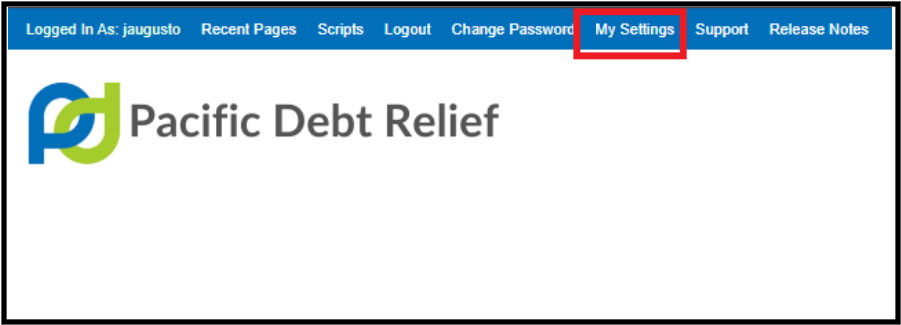
Step 3: On the pop-up window, click Email and click Disconnect on the PDR gmail account listed:
Step 4: Click Disconnect on the confirmation prompt.
Step 5: Click Connect an Email Provider back on the My Settings page.
Step 6: Choose GMail.
Step 7: Select your PDR Gmail account and click Continue.
Step 8: Make sure to tick the checkbox that says “Send email on your behalf.” before clicking Continue.
You can now send email successfully.
Additional resource:
Video guide on this process as shown by Forth Support.
Comments
0 comments
Please sign in to leave a comment.